Using AI to Make Better Flashcards
This is the third article in my series about using AI and Anki to make better revision flashcards.
In the first article, I looked at why flashcards work. In the second, I went through the basics of Anki: what it is, how to install it, and how the main pieces fit together.
This article is about the next step: using AI to help turn learning material into useful flashcards.
AI can be very good at this, but it is not magic. It can save a lot of time, especially when you have a large amount of material to work through, but you still need to guide it, check the output, and make sure the cards are actually useful.
The aim is not to get AI to do all your revision for you. The aim is to use it to produce a good first draft of flashcards, which you can then review, improve, and import into Anki.
Where AI fits in
Making flashcards manually is useful, but it can be slow.
You have to read the material, decide what matters, write a question, write an answer, and then repeat that process again and again.
That effort can be valuable. It forces you to think. But if you are working through a long course, a textbook, an exam guide, or a collection of web pages, it can also become a barrier. You may end up spending so much time making cards that you do not leave enough time to review them.
AI can help with the first draft.
It can take a section of learning material and suggest possible flashcards. It can identify definitions, key facts, comparisons, processes, and details that are likely to be worth testing.
But it should not be the final authority.
Think of AI as an assistant. It can help you produce cards more quickly, but you are still responsible for deciding whether those cards are correct, clear, and useful.
Start with good source material
The quality of the flashcards depends heavily on the quality of the source material.
If you give AI a vague prompt, it will usually give you vague cards. If you give it clear source material, it has something much better to work from.
Good source material might be:
- a section from a textbook
- your own notes
- a course handout
- a web page
- a revision guide
- a PDF
- a table of facts
- an exam specification
- a transcript from a video
- a page from official documentation
Try to work from material you trust. AI can help turn that material into questions and answers, but it can also make mistakes. If the source material is unreliable, the flashcards will be unreliable too.
It is also better to work in sections rather than trying to process everything at once. A single page, topic, or sub-topic is usually easier to handle than a whole chapter.
Tell AI what you want it to do
One important point: do not just paste learning material into ChatGPT and expect it to know what you want.
AI tools respond to instructions. If you want flashcards, say so.
You can start with something simple like:
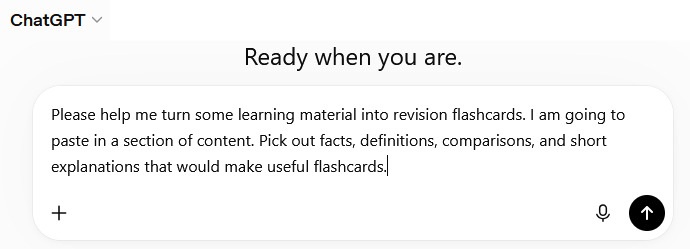
ChatGPT may then reply and ask you to paste the content.
You can then paste the source material in your next message.
For example:
You:
Please help me turn some learning material into revision flashcards. I am going to paste in a section of content. Pick out facts, definitions, comparisons, and short explanations that would make useful flashcards.
ChatGPT:
Sure — paste the content and I’ll turn it into flashcards.
You:
[paste the learning material here]
At that point, ChatGPT should produce a set of flashcards from the material.
You can also do it all in one message:
Please turn the following learning material into revision flashcards. Each card should test one idea. Keep the answers concise.
[paste the learning material here]
Both approaches are fine.
The two-message version can feel more natural if you are new to using AI. The one-message version is quicker once you are used to it.
Getting source material into AI
Once you have told AI what you want, the next step is to give it the source material.
Sometimes that is easy. If you have a web page, PDF, document, or set of notes where the text copies cleanly, you can copy and paste the relevant section straight into ChatGPT.
Other times, the material does not copy neatly. Tables, diagrams, slides, screenshots, and some PDFs can come out jumbled or unreadable when you try to copy the text.
In those cases, screenshots can be useful.
Copying and pasting text
If the text copies cleanly, this is usually the simplest option.
Copy the section you want to revise and paste it into the chat, either after your instruction or after ChatGPT has asked you for the material.
Try not to paste too much at once. A page or a section at a time is usually easier to work with than a whole chapter.
If the material has headings, keep them in. Headings give useful context and help AI understand how the topic is organised.
Taking screenshots of awkward content
If the content does not copy cleanly, take a screenshot instead.
On Windows, you can use:
Shift + Windows + S
That opens the snipping tool, which lets you select part of the screen. You can then paste the screenshot into ChatGPT.
This is especially useful for:
- tables
- diagrams
- slides
- charts
- screenshots from a course
- PDF pages where the text copies badly
Microsoft has more detail on using the Snipping Tool, but that shortcut is the one I use most.
Screenshots are not always perfect, but they can preserve the layout of the material better than copy and paste.
This matters when the layout is part of the meaning. For example, a table comparing two things is often easier for AI to understand from a screenshot than from badly copied text where all the columns have been mixed together.
Capturing long pages with a browser extension
For long web pages, a normal screenshot may not be enough because the article is taller than the screen.
When I was revising for a Microsoft certification exam, I had good results using a Chrome extension called GoFullPage. It can capture a full web page as one long screenshot, even if the page is many screens high.
That meant I could capture a whole article and paste it into ChatGPT, rather than taking lots of separate screenshots.
This can be very useful when the source material is awkward to copy, or when a web page has a lot of formatting that you want to preserve.
You still need to check the results, but it can save a lot of time.
What makes a good flashcard?
AI can produce flashcards quickly, but not all flashcards are good.
A good flashcard should usually be:
- clear
- specific
- easy to mark as right or wrong
- focused on one idea
- short enough to review quickly
This is a weak flashcard:
Front:
Explain biology.
Back:
Biology is the study of living things and includes many topics such as cells, organisms, ecosystems, evolution, genetics, and more.
The problem is that the question is too broad. It is hard to know what counts as a correct answer.
This is better:
Front:
What is biology?
Back:
The study of living things.
That is small, clear, and easy to check.
Good flashcards usually test one idea at a time. If a card contains three or four separate facts, you might remember some of them and forget the others. That makes it hard to know whether to mark the card as right or wrong.
If a card feels too big, split it into smaller cards.
Do not ask for too much at once
It is tempting to paste a huge amount of material into AI and ask for hundreds of flashcards.
That can work, but it often produces weaker cards.
The more material you provide at once, the more likely AI is to:
- miss important details
- create cards that are too broad
- repeat itself
- produce shallow questions
- include things that were not in the source
- make the output harder to check
A better approach is to work in smaller chunks.
For example, instead of asking for flashcards from a whole chapter, start with one section. Once that section looks good, move on to the next.
This also makes it easier to review the cards. If AI produces 20 cards, you can check them properly. If it produces 200, you are much more likely to skim them and miss problems.
Improving the prompt
Once you have some source material, you can ask AI to turn it into flashcards.
A simple prompt might be:
Create revision flashcards from the material below. Each flashcard should test one idea. Keep the answers concise. Do not add information that is not in the source material.
Then paste the material underneath.
That prompt gives AI some important rules:
- make flashcards
- test one idea at a time
- keep answers concise
- stay close to the source material
You can also ask it to aim the cards at a particular level.
For example:
Create revision flashcards from the material below for a GCSE student.
or:
Create revision flashcards from the material below for someone preparing for a Microsoft certification exam.
The level matters because a useful card for a beginner may be too obvious for an advanced learner, while a useful card for an expert may be too difficult for someone just starting.
Reviewing and editing the cards
This is the step you should not skip.
AI-generated flashcards are a draft, not the finished product.
Before importing them into Anki, read through them and ask:
- Is the answer correct?
- Is the wording clear?
- Is the card testing one idea?
- Is the answer too long?
- Is the question too vague?
- Has AI added anything that was not in the source material?
- Are there duplicates?
- Are any important points missing?
This review step is part of the learning process. You are not just doing admin. You are thinking about the material and deciding what is worth remembering.
Sometimes you will need to edit the cards yourself. Other times, you can ask AI to improve them.
For example:
Some of these cards are too broad. Please split them into smaller cards that each test one idea.
Or:
Please shorten the answers while keeping them accurate.
Or:
Please remove duplicate cards and keep the best version of each one.
AI is useful here because it can revise the cards quickly, but you should still check the final version before relying on it.
Getting the cards into Anki
Once you have a set of cards you are happy with, you need to get them into Anki.
There are a few ways to do this.
The simplest option is to create the cards manually in Anki. That is fine if you only have a small number.
If you have more cards, you may want to use a spreadsheet or CSV file so you can import them in bulk.
For non-technical users, this is probably the part that feels most awkward. But the idea is simple: you want one column for the front of the card and one column for the back.
Option 1: Copy and paste cards manually
If you only have a few cards, do not overcomplicate it.
Open Anki, create a new card, and copy the question and answer into the front and back fields.
This is slow for large numbers of cards, but it is the easiest way to start. It also gives you a chance to check each card properly as you enter it.
Manual entry is a good option when:
- you have fewer than about 10 or 20 cards
- you are still learning how Anki works
- the cards need a lot of editing
- you do not want to deal with imports yet
There is nothing wrong with starting manually.
Option 2: Use a spreadsheet
A spreadsheet is often a good middle step.
You can ask AI to create a table with two columns:
- Front
- Back
You can then copy that table into Excel, Google Sheets, or another spreadsheet tool.
This makes it easier to review and edit the cards before importing them into Anki. You can scan the questions, tidy the wording, delete weak cards, and fix mistakes.
A simple table might look like this:
| Front | Back |
|---|---|
| What is a prime number? | A number greater than 1 that can only be divided exactly by 1 and itself. |
| What is active recall? | Trying to remember an answer before looking at it. |
For many people, this is easier to understand than working directly with a CSV file.
Once the spreadsheet looks good, you can save or export it as a CSV file.
Option 3: Import a CSV file
CSV import is useful when you have lots of cards.
A CSV file is just a simple text file that stores rows and columns. CSV stands for comma-separated values.
For a basic Anki import, you can think of it like this:
1Front,Back
2What is a prime number?,A number greater than 1 that can only be divided exactly by 1 and itself.
3What is active recall?,Trying to remember an answer before looking at it.
Each row is one card.
The first column is the front of the card. The second column is the back of the card.
In practice, you may not need to write the CSV file by hand. You can work in a spreadsheet and export the file as CSV when you are ready.
Asking for a table or CSV format
When asking AI to create cards, you can ask for the output in a format that is easier to import.
For example:
Create flashcards from the material below. Return them as a Markdown table with two columns: Front and Back. Each card should test one idea. Keep the answers concise.
That is useful if you want to review the cards on screen or copy them into a spreadsheet.
If you are ready to import into Anki, you can ask for CSV instead:
Create flashcards from the material below. Return them in CSV format with two columns: Front and Back. Each card should test one idea. Keep the answers concise. Do not include any extra explanation before or after the CSV.
That last sentence matters. If AI adds an introduction or closing comment, you may need to remove it before importing the file.
For a first attempt, I would usually ask for a table rather than CSV. It is easier to read and check. Once the cards look good, you can convert them to CSV or ask AI to output the final version as CSV.
How the CSV should be structured
For simple Anki cards, the CSV structure should be boring.
That is a good thing.
You want something like:
1Front,Back
2"What is a prime number?","A number greater than 1 that can only be divided exactly by 1 and itself."
3"What is active recall?","Trying to remember an answer before looking at it."
The first row contains the column names.
Each row after that is one card.
The first column becomes the front of the card. The second column becomes the back of the card.
Quotes around the values can help, especially if the question or answer contains commas.
For example, this answer contains a comma:
1A number greater than 1, that can only be divided exactly by 1 and itself.
That one would probably be fine without quotes, but many answers will contain commas. Quoting the values makes the file safer.
If you are using a spreadsheet, it will usually handle this for you when you export as CSV.
Importing the CSV into Anki
Once you have a CSV file, you can import it into Anki.
Anki’s manual has a more detailed page on importing text files, but the basic idea is that each row becomes a note and each column maps to a field.
The exact screens may change slightly over time, but the basic process is:
- Open Anki Desktop.
- Choose the deck you want to import into.
- Use the import option.
- Select your CSV file.
- Choose the note type, usually Basic.
- Make sure the first column maps to Front.
- Make sure the second column maps to Back.
- Check whether the first row should be treated as headers.
- Import the cards.
- Review a few imported cards to make sure they look right.
The important part is checking the field mapping.
Anki needs to know which column goes into which field. For a basic card, that usually means:
| CSV column | Anki field |
|---|---|
| Front | Front |
| Back | Back |
Do not import hundreds of cards and assume everything worked perfectly. Import a small batch first, check the result, and then continue.
Common import problems
CSV imports are useful, but they can go wrong.
Here are some common problems.
The question and answer appear on the same side
This usually means the columns did not map correctly, or Anki did not split the file into separate fields.
Check the import settings and make sure Anki is recognising the separator correctly.
Everything imports into one field
This usually means Anki is not reading the CSV as separate columns.
Check that the file really is a CSV file and that the separator is correct. In most cases, that means commas between the columns.
The first row imports as a flashcard
If your first row says:
1Front,Back
Anki might import that as a card unless you tell it to treat the first row as headers.
If that happens, you can delete the unwanted card.
Commas break the import
If your questions or answers contain commas, and the CSV is not quoted properly, Anki may split a single answer into multiple columns.
Using a spreadsheet to export the CSV can help because it usually handles quoting correctly.
You can also ask AI to wrap each value in quotes.
Cards are imported into the wrong deck
Before importing, check which deck Anki is going to use.
If the cards end up in the wrong place, you can move them afterwards, but it is easier to choose the right deck during import.
The wrong note type is selected
For normal front-and-back cards, use a basic note type.
If you accidentally choose a different note type, the imported cards may not behave as expected.
Things to watch out for
AI can be very helpful, but it can also make mistakes.
Common problems include:
- making up facts
- changing the meaning of the source material
- creating vague questions
- writing answers that are too long
- producing duplicate cards
- missing important details
- making cards that are too easy
- making cards that test several ideas at once
This is why checking the output matters.
The danger is that AI-generated cards can look polished even when they are wrong. A confident answer is not the same as a correct answer.
For revision, that matters. If you learn a wrong flashcard, you are training yourself to remember the wrong thing.
Always check the cards against the source material, especially for subjects where accuracy is important.
A simple prompt you can reuse
Here is a prompt you can adapt:
Create revision flashcards from the source material below.
Rules:
- Each card should test one idea.
- Keep the question clear and specific.
- Keep the answer concise.
- Do not add facts that are not in the source material.
- Avoid duplicate cards.
- If a topic is too broad, split it into multiple smaller cards.
Return the cards as a table with two columns: Front and Back.
Source material:
[paste the material here]
Once you are happy with the cards, you can ask:
Please convert the table into CSV format with two columns: Front and Back. Wrap each value in quotes. Do not include any extra explanation before or after the CSV.
That gives you a practical workflow:
- Paste in the source material.
- Ask for cards as a table.
- Review and edit the cards.
- Ask for CSV when ready.
- Import into Anki.
Where this leaves us
AI can make flashcard creation much faster, but it works best when you stay involved.
The useful process is not:
Ask AI for flashcards and trust whatever it gives you.
It is:
Give AI good source material, ask for focused cards, review the output, fix problems, and then import the cards into Anki.
That way, AI helps with the repetitive work, but you still control the quality.
Used like that, it can turn a large amount of learning material into something much easier to revise: small, focused flashcards that you can review over time.
That brings this short series to an end. I hope it helps you get started with flashcards, Anki, and AI without making the process feel more complicated than it needs to be.
Good luck with your studying.